
This morning, fellow MVP Allan De Castro pinged our group with a heads-up that the Managed Identity functionality in Power Platform received some updates and broke his implementation. Luckily, none of our customers have been hit with the update yet, but I decided to investigate how to be ready for the inevitable.
Background
The feature is incredibly important for secure connectivity from Dataverse code-first plug-ins to third-party APIs, like Microsoft Graph or Azure Key Vault (or any Entra ID-protected resource). The version 0 implementation was in preview for a long time, but worked pretty well for our use-cases. Seemingly Microsoft thought some changes were needed, and they are now rolling out with version 1 of the implementation.
The good news is that you can update your existing implementation from version 0 to version 1 before the breaking change is installed. Supposedly, you should be informed when this happens through Message Center, but I haven't seen anything yet 🤷♂️.
Check the version
You can easily validate which of the Managed Identity records in your Dataverse environment are using the old implementation by checking through Web API:
GET {{environment}}/api/data/v9.0/managedidentities?$select=applicationid,managedidentityid,credentialsource,subjectscope,tenantid,version&$filter=credentialsource eq 2
You'll get a list of all Managed Identity records in your environment. Those who have the property version: null are using the old implementation, and those who show version: 1 are already on the new implementation.
Migrate from version 0 to version 1
Migrating to the new version isn't so difficult, but the documentation is a bit lacking in information. We can take the "I need it to work, not to understand it"-approach, or the "I need to understand this"-approach.
"I need it to work"-approach
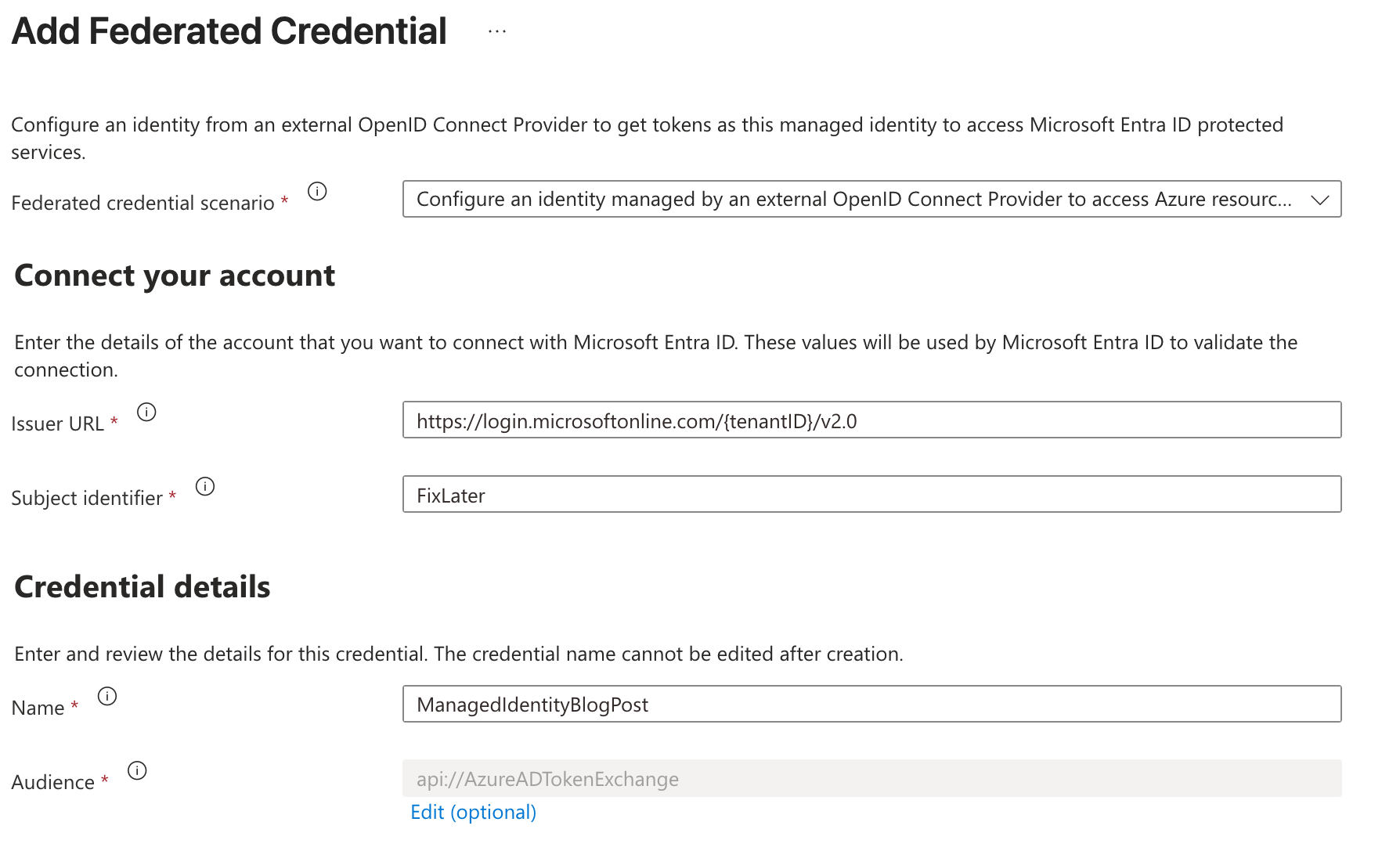
You start in the Azure Portal, find your Managed Identity or App Registration, and you add a new Federated Credential. Make sure to put in your correct tenant id in the Issuer URL, we'll adjust the Subject identifier later:
Update your Managed Identity record in Dataverse with the following statement. You can find the record id from the results of the previous step.
PATCH {{environment}}/api/data/v9.0/managedidentities({{managedidentityrecordid}})

{
    "version": 1
}
Now you execute your code that uses the Managed Identity feature. The plugin will fail, and you will get a plugin trace log with something similar to this:
Original exception: AADSTS700213: No matching federated identity record found for presented assertion subject '/eid1/c/pub/t/9OhouCB5JE/a/qzXoWDkuqUa3l6zM5mM0Rw/n/plugin/e/99366eab-c68e-eff4-8a0/h/bf8a341ca1104ad8028940'.Now you go back into Azure Portal, and you update the previously created Federated Credential with the provided value in the Subject identifier field:
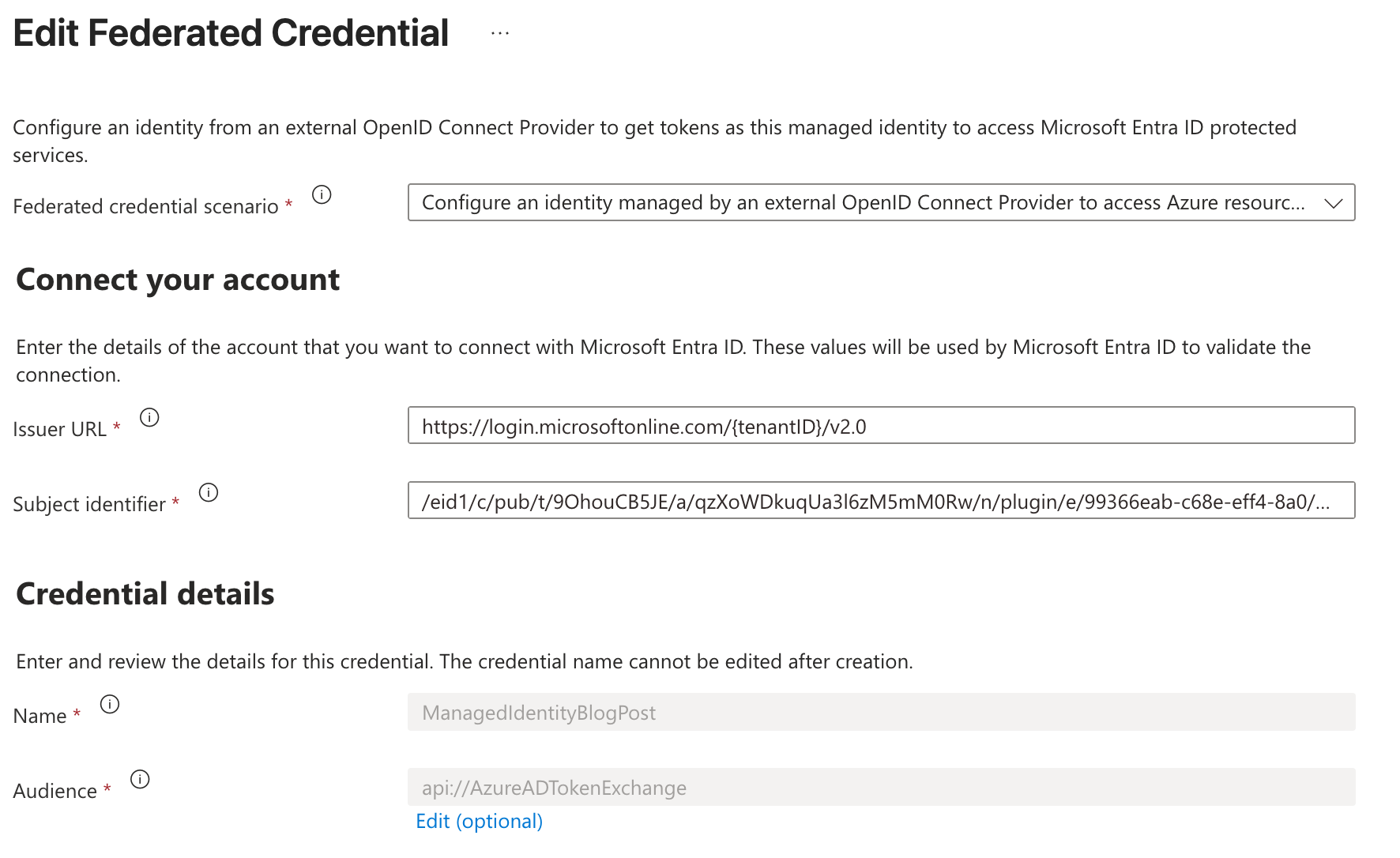
If you go back to execute your code, now it will just work. Hooray!
"I need to understand"-approach
The subject identifier is made up out of several different parts, and the documentation doesn't really explain how to get the correct values for those parts.
Choose the format that matches your certificate type. For a self-signed certificate (in development only, of course) the value should be this:
/eid1/c/pub/t/{encodedTenantId}/a/qzXoWDkuqUa3l6zM5mM0Rw/n/plugin/e/{environmentId}/h/{hash}With a trusted issuer certificate (for production), the value should be like this:
/eid1/c/pub/t/{encodedTenantId}/a/qzXoWDkuqUa3l6zM5mM0Rw/n/plugin/e/{environmentId}/i/{issuer}/s/{certificateSubject}
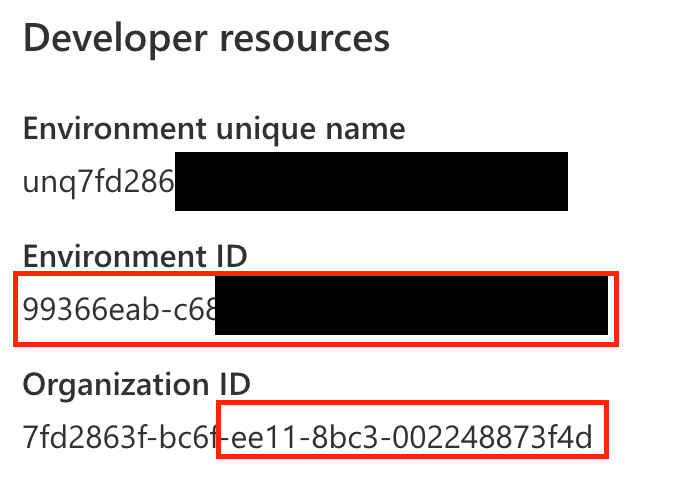
The environment id can be easily found in many places, like the Maker Portal:
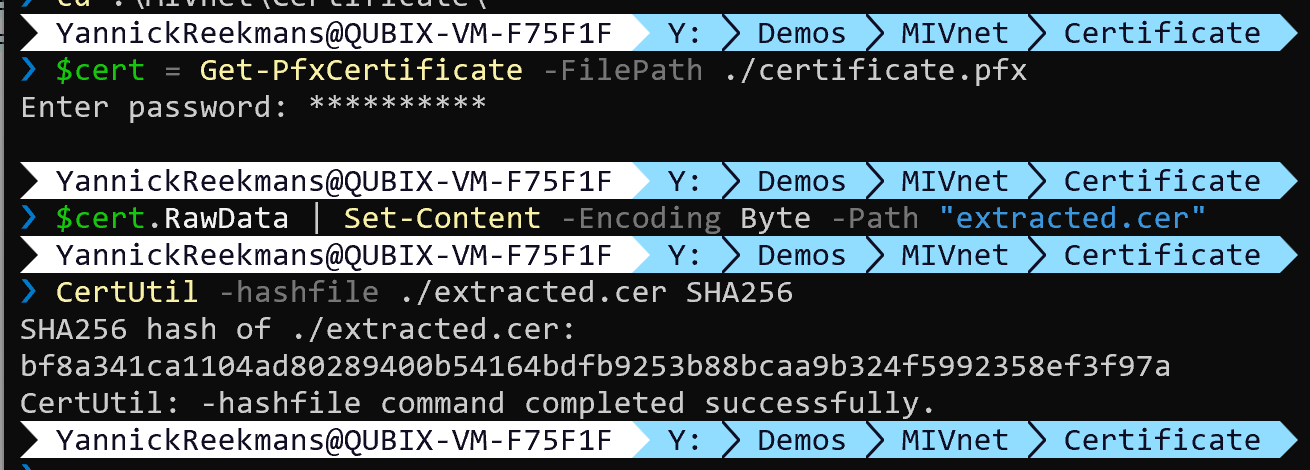
Microsoft provides a script to calculate the hash of the certificate, in case you are using a self-signed certificate (as long as you are running it on Windows).
The encoded tenant id is a bit more difficult. Microsoft says to take the GUID and convert it to HEX, and then convert that to Base64URL (not standard Base64). They do not provide a script for this, so I'll do that instead:
$tenantId = "your-guid-here"
$tenantGuid = [System.Guid]::Parse($tenantId)
$tenantBytes = $tenantGuid.ToByteArray()
$base64 = [System.Convert]::ToBase64String($tenantBytes)
$encodedTenantId = $base64.Replace('+', '-').Replace('/', '_').TrimEnd('=')

# Output the result
$encodedTenantId
Now you have the encoded tenant id, and you can piece together the Subject Identifier yourself instead of relying on the error message inside a plugin trace log to do it for you 😉
If you now do the PATCH update of your existing Managed Identity record, it will switch to the new implementation (just like in the previous step). If, for some reason, it doesn't work, you can temporarily (as long as it's supported) switch back to the previous specification using:
PATCH {{environment}}/api/data/v9.0/managedidentities({{managedidentityrecordid}})

{
    "version": null
}